Your first successful setup is a response based on the intended account’s data. Start with one platform and a small request before adding more accounts or automation.

1. Connect one platform

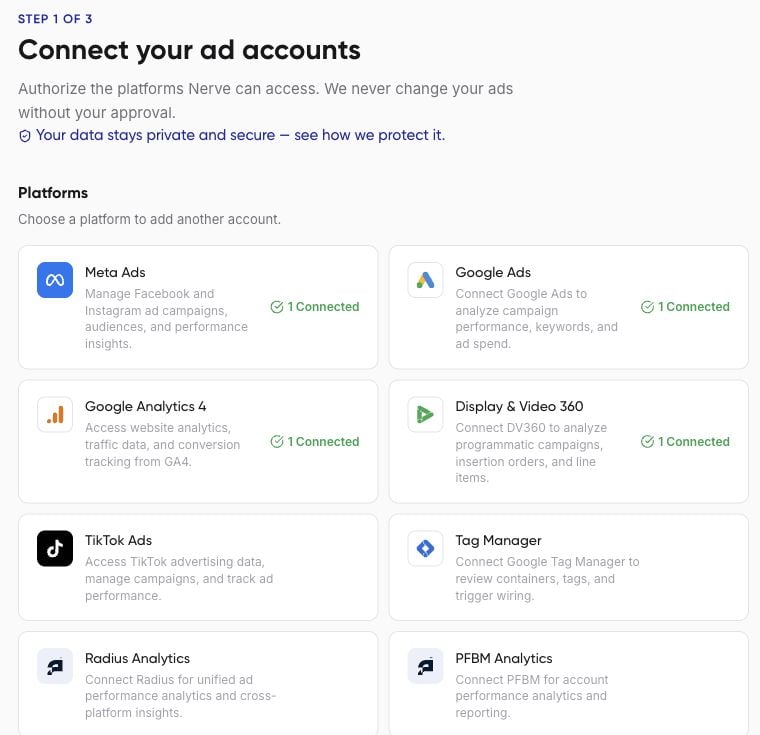
Open Get started > Connect accounts. Choose a platform you use, then complete its sign-in and permission screens. Check the resulting connection status and use Verify if available. Marketing-platform connection cards in Nerve A connected login and an accessible advertising account are different things. You may still need to choose a customer account, advertiser, or analytics property.
2. Choose an assistant

Use AI Agents > Agents for Nerve’s built-in chat. Select at least one account before sending a message. Alternatively, open Connect to AI and follow the Claude or ChatGPT guide.

3. Make your first request

Nerve’s First prompt page offers a Meta example. Replace the example account name before copying it. If you connected another platform, use this platform-neutral request instead:
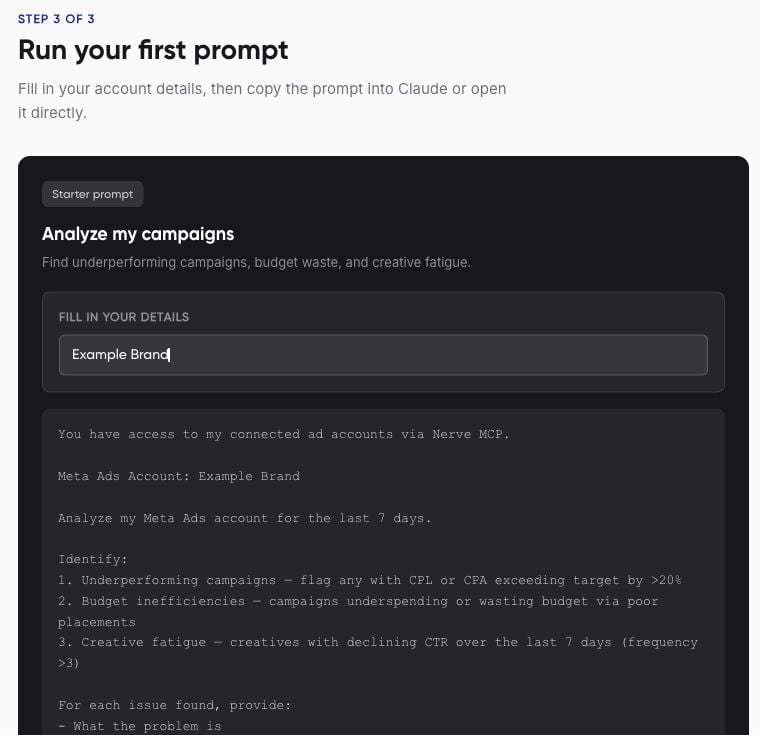
Nerve First prompt page with an example account name

Check the result

Confirm the account, dates, currency, and whether the assistant retrieved data or only described what it could do. Zero results need investigation: ask whether the account has no matching records, the filters excluded them, or access failed. The Overview checklist is a setup aid. If its progress and your actual connection test disagree, inspect the connection and tool response before reconnecting. Use connection troubleshooting if needed.